AI video production prompt kit
The class explainer on language access was made with the prompts below, in this order. Three class examples, one per track:
- Track B: Who gets help in their own language? Language access in the United States, an explainer
- Track A: Computational social scientist and public interest technologist, a digital story of self
- Track C: Immigrant Support Atlas, a tool introduction
The Week 8 lab uses the script table; the Week 11 lab uses the build and the accessibility steps.
Tools and accounts
| Tool | Use in the class video | Account | U-M covered |
|---|---|---|---|
| Claude chat | Script table, paper edit, caption check | Free or Pro | No |
| Gemini | The same chat prompts, as written | U-M Google account (U-M ITS) | Yes |
| UM-GPT agent | A saved assistant with the script table prompt as its instructions (ITS AI services) | U-M account | Yes |
| Claude Code | Every build step: assets, prints, highlights, narration, motion, render | Pro, Max, Team or Enterprise; pairs share a laptop | No |
| Antigravity CLI | The same build steps, as written | Personal Google account; Google AI Pro raises the limits, and US college students can get it free for a year (MacRumors). It replaced Gemini CLI, which stopped serving personal accounts on 18 June 2026 (Google) | No |
| ElevenLabs | Narration, one file per script row | Free up to 10,000 credits a month with ElevenLabs credited; a clone of your own voice needs Starter (pricing, checked 28 October 2026) | No |
| Remotion | Scenes and render | Free for individuals and nonprofits | Not applicable |
| Whisper and ffmpeg | Narration check, captions, cuts, on your own laptop | Free, offline | Not applicable |
Before you start
- Your own narration, consented staff, public documents and public-domain footage can go into any tool above. An identifiable vulnerable person’s footage or interview transcript is edited only in the offline lane on the Tools page.
- On Windows, the Claude desktop app asks you to install Git for Windows the first time.
- ElevenLabs needs an API key in an environment variable on your laptop (ElevenLabs authentication); never paste a key into a chat. Clone only your own voice.
- The Digital Story rules on AI use apply to everything below, including the label on any AI-made image or voice.
Antigravity CLI setup
Antigravity CLI is Google’s terminal agent. It writes and executes code on your laptop the way Claude Code does. The Antigravity CLI video guide has every step for Tracks A, B and C, written for Antigravity.
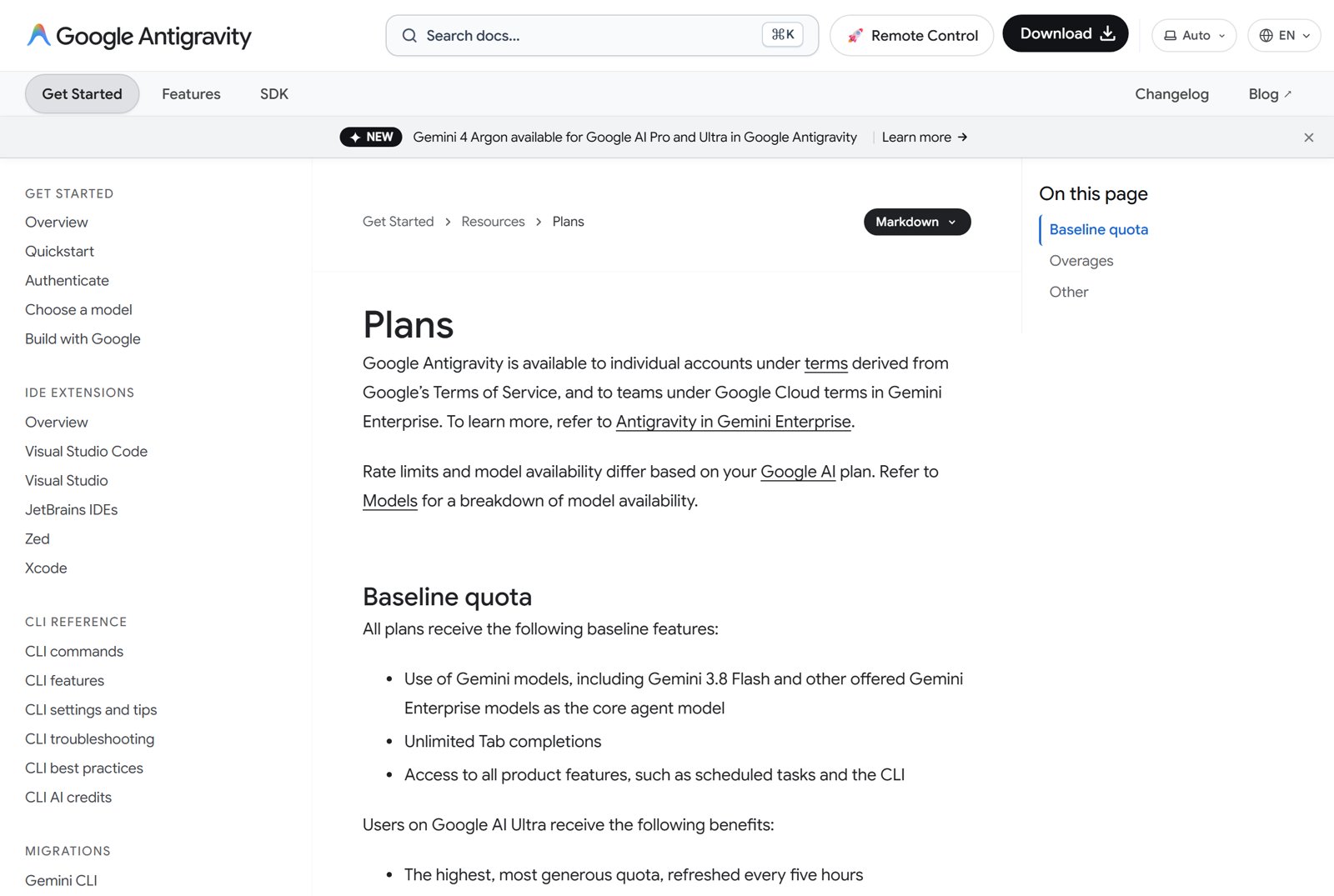
Free Google AI Pro for students. US college students can get 12 months of Google AI Pro at no cost (Google’s announcement). AI Pro gives Antigravity a higher quota, refreshed every five hours; without it you get a smaller weekly quota (Antigravity plans).
- Open gemini.google/students with a personal Google account, not your U-M account; the offer is not available on school-issued accounts.
- Click Claim Free Student Plan and verify your enrollment through SheerID.
- Add a payment method. The plan charges $19.99 a month after 12 months unless you cancel, so set a reminder. The offer can be claimed until 31 December 2026 (Google One Help).

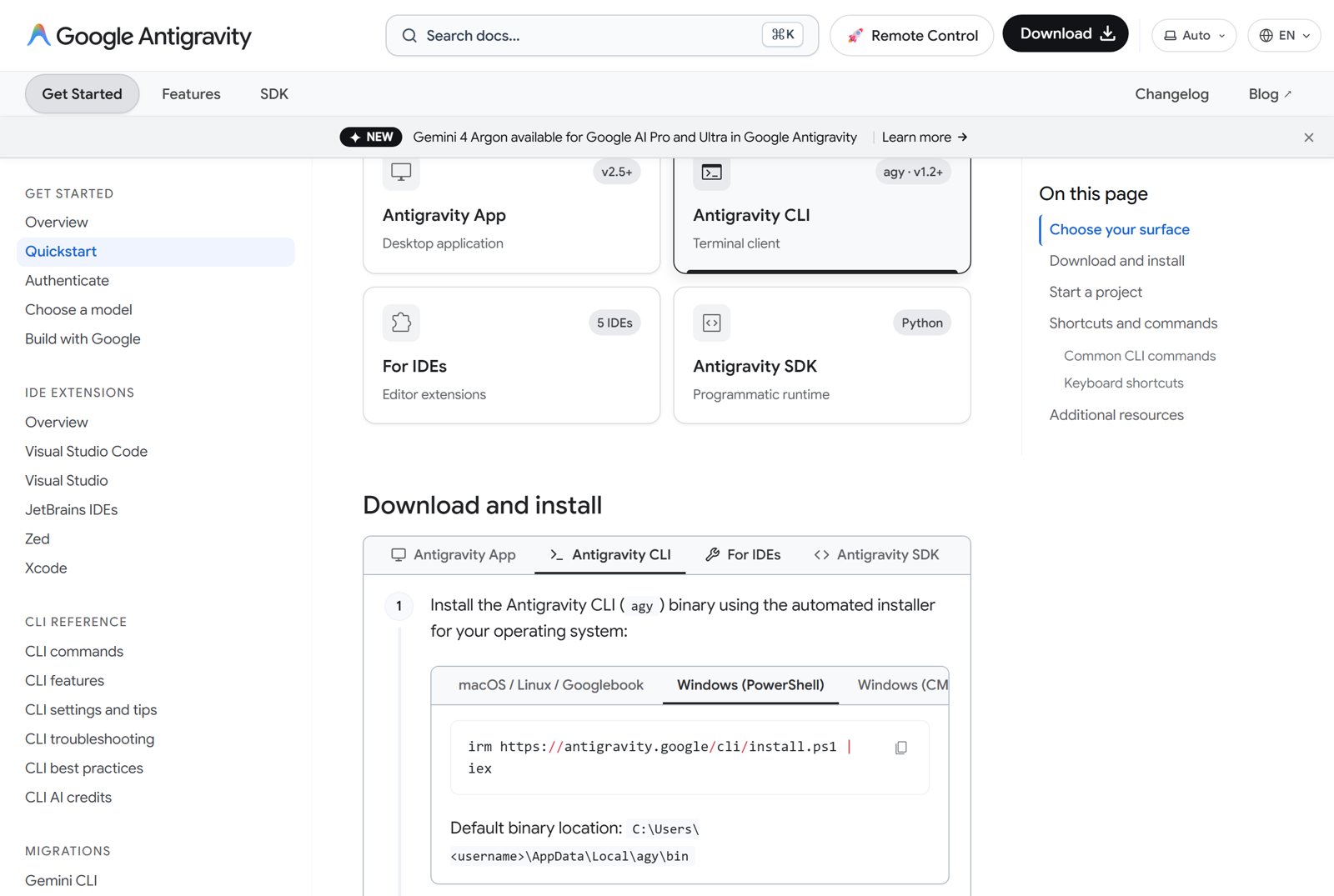
Install. In Windows PowerShell, paste the command from the Antigravity CLI quickstart, then close and reopen the window and check the version.
Install on Windows (PowerShell)
Install on macOS
curl -fsSL https://antigravity.google/cli/install.sh | bash
Check
agy —version
First launch. Make a new folder outside Google Drive and Dropbox, open it in the terminal and type agy. It asks for a color scheme and a display mode, then sign in with the Google account that has the student plan, and confirm that you trust the folder.
Start a project
mkdir my-video
cd my-video
agy
Tools the build needs. Ask the agent to check for Node.js (for Remotion), Python and ffmpeg and to install whatever is missing; read each step before you approve it. Put your ElevenLabs key in an environment variable before you start the agent: in PowerShell, setx ELEVENLABS_API_KEY "your key", then open a new window. Never paste the key into the agent.
Learning it. Google’s Antigravity CLI walkthrough shows a full session, and the hands-on codelab covers it step by step. Which Antigravity surface should I use? compares the CLI with the desktop app.
Script table in Claude or Gemini chat
The script is the timeline. Every narration line becomes one row, and each row says what is on screen and where its fact comes from.
Step 1. Paste your communication brief and the sources you already have (links or pasted text), then send this.
Script table
Here is my communication brief and my sources. Write a script for a video of about [90 seconds / 3 minutes] as a table with one row per narration line. Columns: number, narration, what is on screen, image or footage in the middle of the frame, a structure or object in front, and the source to cite on screen. Use only facts from the sources I pasted. Where a line needs a fact I have not given you, write NEEDS SOURCE in the source column instead of filling it in.
Step 2. Read every NEEDS SOURCE row and every number against the page it came from before you go on. In the class example, one figure (26 million people who speak English less than very well) could only be confirmed as reported by KFF Health News, so the screen says “as reported by”.
Step 3. If you have interview or archival footage with a transcript, ask for a paper edit.
Paper edit
Here is the transcript with timestamps. Pick the passages for a [60-second] cut that supports rows [3 to 5] of my script. Quote the words exactly as they appear, keep each passage’s start and end timestamps, and list them in order as a table. Do not paraphrase or join sentences that were not spoken together.
Step 4. After auto-captioning, check the captions against the transcript.
Caption check
Here are my auto-captions and my transcript. List every caption line that differs from the transcript, with its timestamp, the caption text and the correct text. Flag names, numbers and non-English words in particular.
Auto-captions are a draft. The Internet Archive’s own captions for the 1940s film in the class example read “the babble of a hundred ton” where the narrator says “a hundred tongues”.
Video build in Claude Code or Antigravity CLI
Open the Code tab (or start Antigravity CLI in a terminal), choose a new empty folder on your laptop (not a Google Drive or Dropbox folder), and follow the steps. Claude Code asks before it installs anything; read what it is about to do before you say yes.
Without installing anything. Claude Code in the cloud works in the browser at claude.ai/code on a Pro plan, with Python and Node.js already installed. Two settings are needed for this build: set the environment’s network access to Custom or Full so it can reach ElevenLabs and the archives, and add the ElevenLabs key as an environment variable on the environment. Rendering Remotion there has not been tested for this course; the desktop app is the tested route.
Step 5. Assets. Paste your script table first. Before you send the prompt, read Finding footage and images below, and name the archives that fit your topic in the prompt.
Asset research
For each row of this script, find public-domain or openly licensed material I can use: archival footage (Internet Archive, Library of Congress, National Archives, Wikimedia Commons), primary documents as PDFs, and photos. Save each item in an assets folder. Record the license exactly as the source page states it and never guess one. Write a MANIFEST.md with the file, the source URL, the license and the credit line I should print on screen. Tell me which rows have nothing usable.
News and organization pages are screenshots, credited “Screenshot of [outlet], [month year]”. A news photo inside a screenshot belongs to the outlet; crop to the headline if the video will be posted publicly.
Step 6. Prints and cut-outs.
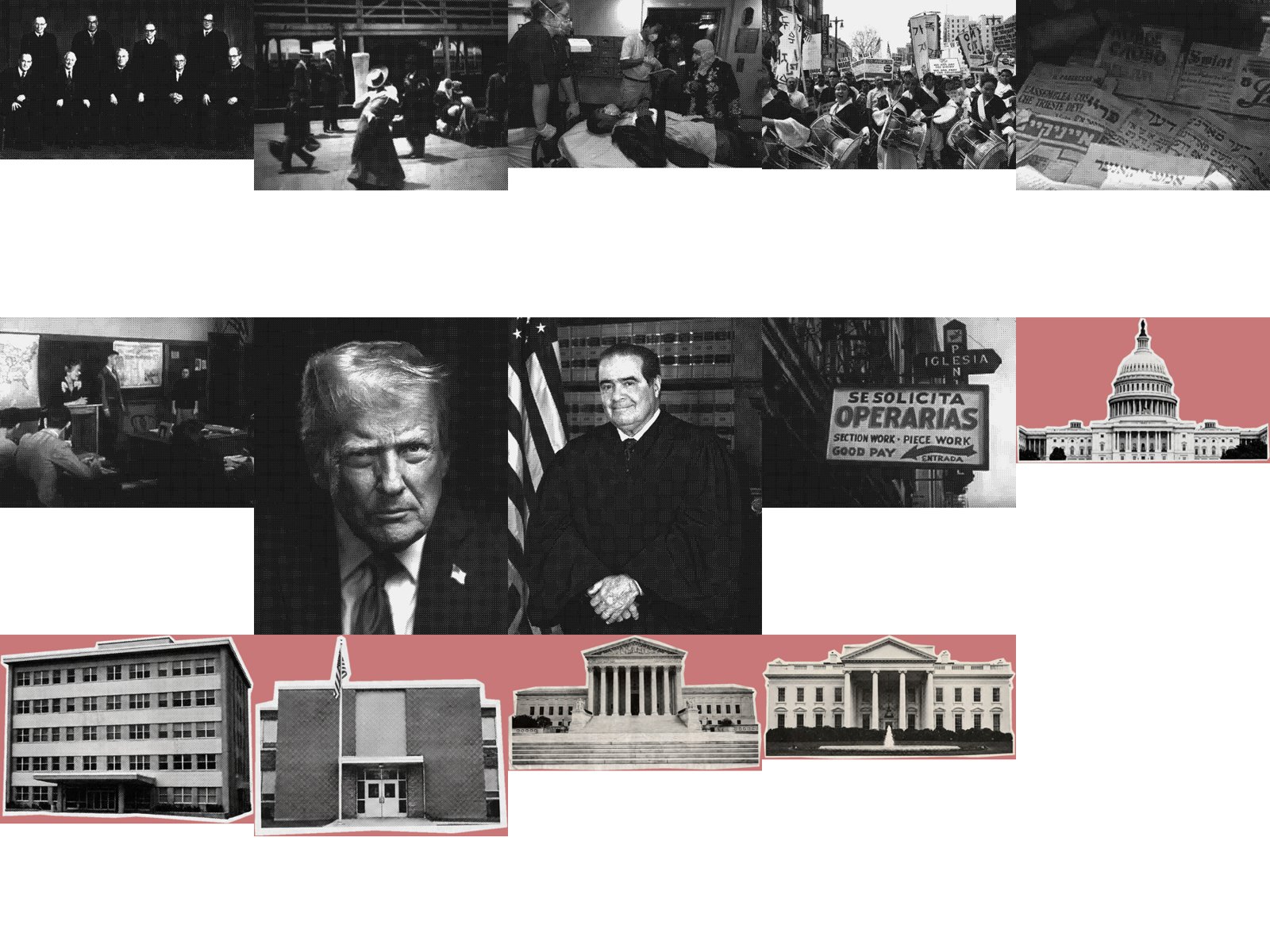
Prints
Make each photo in assets/photos a black-and-white halftone print with a white border, about 900 pixels wide, and save it in public/prints. Keep the faces readable.
Step 7. Highlights on documents.
Highlight positions
For each PDF page in assets/documents, find these exact phrases on the page and give me the rectangle of each line they cover, in pixels of a 200 dpi render, so the highlighter falls on the printed words: [paste the phrases]. If a phrase is not found, show me the page text around where it should be.
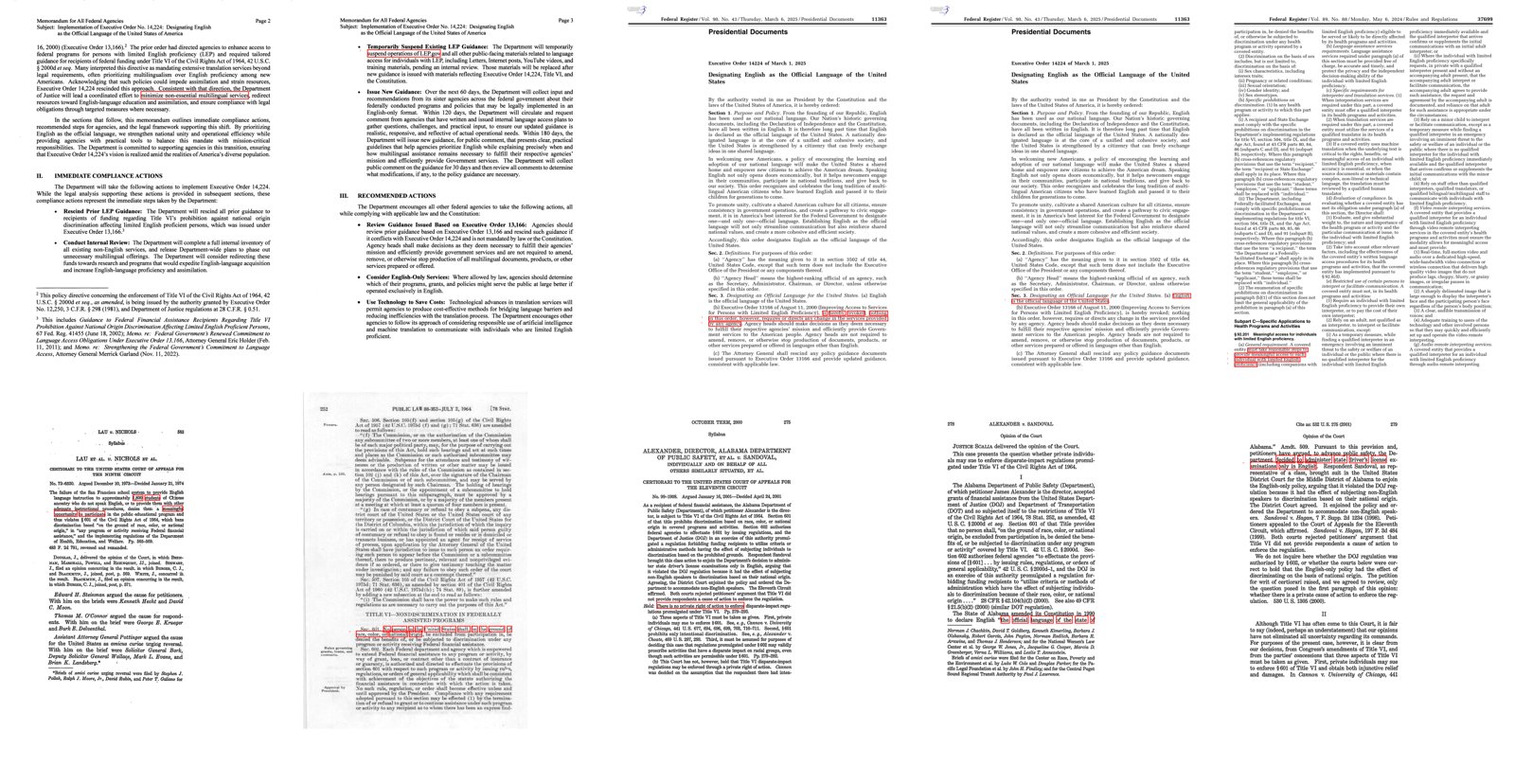
Scanned court opinions often split a word across lines (“ex- aminations”), so a short phrase from one line is easier to find than a whole sentence.
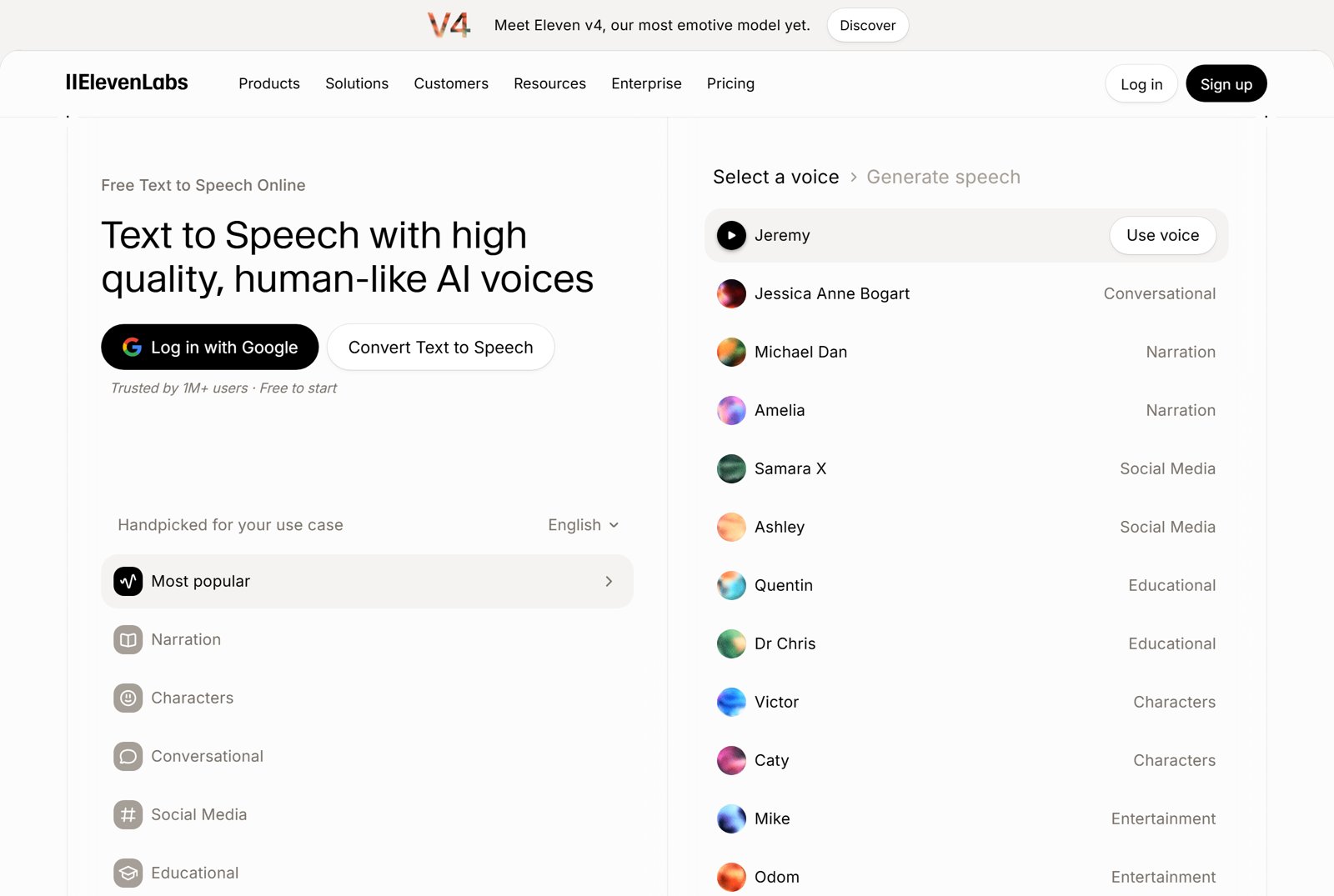
Step 8. Narration. Try a voice in the browser first: paste one script line on the ElevenLabs text to speech page, pick a voice from the Voice Library and listen. The class video used Kayla with the v4 model, about 4,000 characters for the whole script. Then put the API key in an environment variable and send this.
Narration
Make one narration file per script row with ElevenLabs, using the voice [name], and save them in public/vo. Then transcribe each file with Whisper on this laptop and list any number, name or acronym that was read differently from the script.
In the class example Whisper heard “2,856” as “2, 1956” and “Executive Order 13166” as “113-166”. The fix was to spell numbers out in the text sent to the voice and keep digits in the captions.
Step 9. Motion. Install the Remotion plugin from the Code tab: Customize, then Plugins, then Discover, then search for remotion (Remotion’s instructions). Remotion is free for individuals and nonprofits under its license.
Visual system
Set up a Remotion project for a 1280 by 720 video at 30 frames per second. Every scene uses the same background texture, one font for headlines, one for body text, black ink, one red accent and a yellow highlighter. Each scene has the background, the main image in the middle, and a structure or object in front that covers its lower edge.
One scene
Build scene [3] from row [3] of the script. The print pops in with a spring and a slight tilt, the document slides in on the right, and the camera pushes toward the highlighted lines before the highlighter is drawn across them. Put the source line at the lower left and leave captions out of the picture; they go up as a separate file. The scene lasts as long as its narration file plus two-thirds of a second.
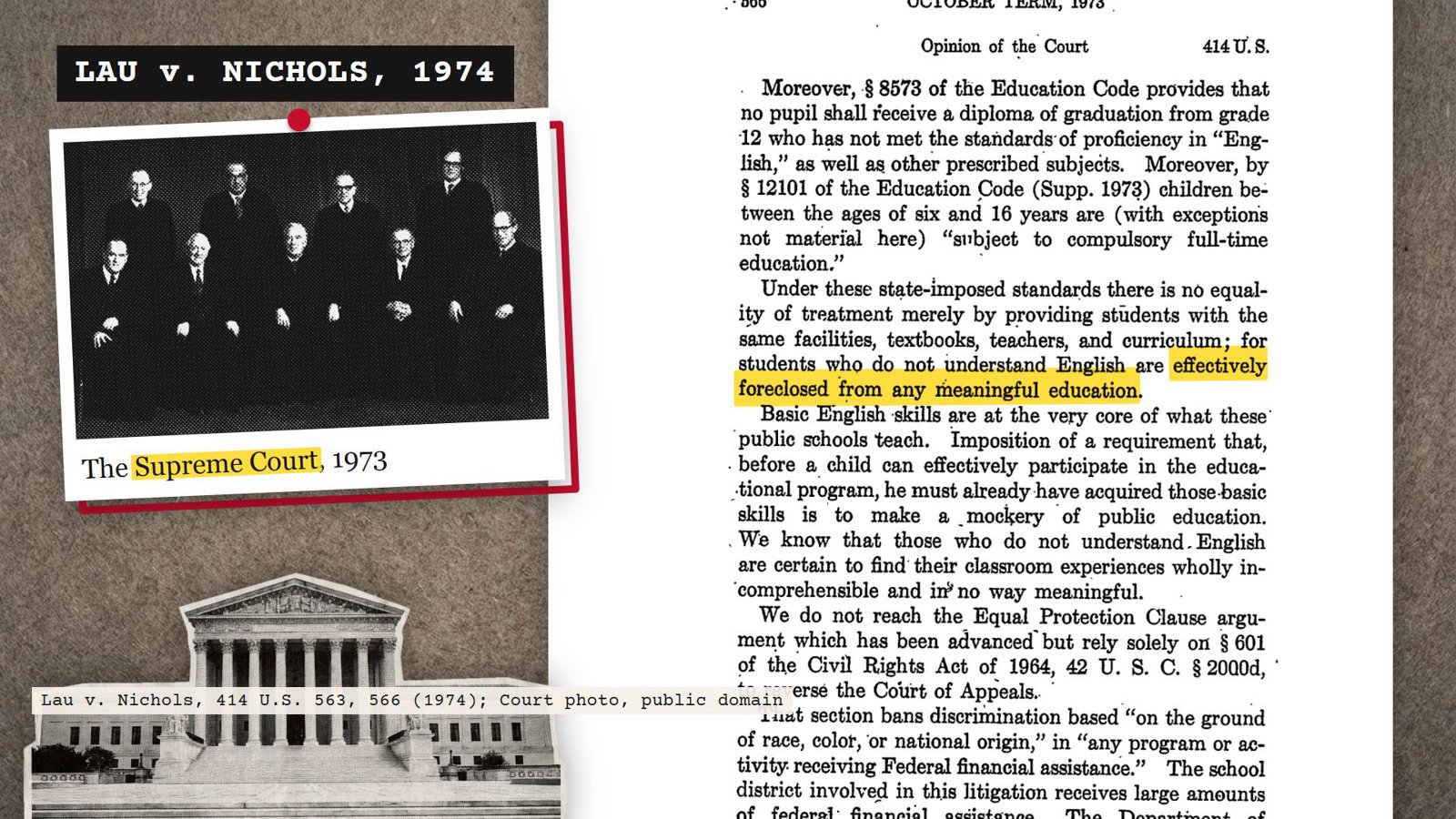
Then ask Claude Code to start Remotion Studio, look at the scene in the browser, and adjust size and position with the controls there.
Step 10. Render.
Render
Join all scenes in order with their narration and render the MP4 at 1.5 times the composition size, so it comes out 1920 by 1080. Then take one still from the middle of every scene so I can check them side by side, and tell me the resolution of every footage file you used.
The first render of the class example looked soft because two archive films had been downloaded as 320 by 240 copies. The Internet Archive also holds the original files; ask for the largest version of every item.
Step 11. Sound.
Sound
Find a typewriter sound for the title and quiet background music. Use only recordings with a license that allows use on YouTube (the YouTube Audio Library, Pixabay, or Creative Commons music), record each license in assets/sound/MANIFEST.md, and give me the credit lines for the description. Mix them under the narration about 15 dB lower than the voice, lower still while someone speaks, without rendering the video again.
Claude cannot hear the result. Listen to the whole video before you post it.
Accessibility and translation
Captions written by a machine and never checked are what deaf viewers call craptions; the deaf YouTuber Rikki Poynter started the #NoMoreCraptions campaign against them. Captioning is also a legal duty for universities, governments and many funded nonprofits. The National Association of the Deaf sued Harvard and MIT in 2015 over uncaptioned online video, and both agreed in consent decrees to caption what they post (DREDF). The Justice Department’s 2024 rule requires state and local governments’ websites and posted video to meet WCAG 2.1 AA (ADA.gov); an April 2026 interim rule moved the deadlines to April 2027 for governments serving 50,000 people or more and April 2028 for the rest (Plante Moran).
AI helps with every check below, and a person still reads the result. The standards to check against are the W3C guide to accessible audio and video, the DCMP Captioning Key for caption style, and YouTube’s help page on automatic captions, which says they can misrepresent speech and should always be reviewed.
| Check | AI step | Human step |
|---|---|---|
| Captions | Whisper or YouTube drafts them; the caption check prompt lists lines that differ from the transcript | Listen and fix names, numbers and non-English words |
| Caption format | The audit prompt (step 12) flags lines over 42 characters and cues faster than 20 characters a second | Rewrap and retime the flagged cues |
| Text no one reads aloud | The audit lists on-screen text by scene; the transcript prompt (step 13) writes it out | Read the transcript against the video once |
| Contrast and size | The audit flags small or low-contrast text from the stills | Confirm each flagged pair in the WebAIM contrast checker |
| Flashing | The audit flags anything faster than three flashes a second | Watch the flagged scene |
| Translation | One chat translates, a second chat reviews line by line (step 14) | A reader of the language checks before the label comes off |
Every row was applied to the class video. The audit found caption lines up to 84 characters, two government clips with speech the narration did not cover, one partly in Spanish, and a list of photo captions, source lines, quoted statements and highlighted lines of each law that no one reads aloud. The captions were rewrapped to two lines of 42 characters, the clips received verbatim captions with an English translation for the Spanish, and the list became the descriptive transcript linked in the description. The reviewer agents changed 8 to 17 lines per language; the Chinese track had rendered national origin as ethnic ancestry.
Step 12. Accessibility audit.
Accessibility audit
Here are my script table, my caption file and one still from every scene. Audit the video for accessibility and give me a table with the time, the problem and the fix. Check: caption lines over 42 characters or cues over two lines; cues faster than about 20 characters per second; speech, other languages and sounds missing from the captions; on-screen text the narration never reads aloud (sources, labels, quotes, highlighted lines), listed by scene; text smaller than 24 pixels at 1080p or low in contrast against its background; anything that flashes more than three times a second.
In the class example the audit found long caption lines, which were rewrapped to two lines of 42 characters, and a list of on-screen text that no one reads aloud: every photo caption, every source line, the quoted statements and the highlighted lines of each law. That list became the descriptive transcript.
Step 13. Descriptive transcript.
Descriptive transcript
Write a descriptive transcript of the video as plain text: the narration and any other speech in order with a timestamp, and after each scene, in brackets, what the screen shows that no one says aloud, such as photo captions, labels, quoted statements, highlighted lines from documents and source lines. Mark speech in another language and give its English translation with the source of that translation.
Link the transcript in the video description. It is the text alternative for viewers who are blind or have low vision, and for anyone who wants to read instead of watch.
Step 14. Captions in other languages.
Caption translation
Translate this caption file into [language]. Keep every index number and timestamp line exactly as it is, change only the text lines, keep at most two lines per caption, and use the terms US agencies use in that language for legal and program names. Check the structure against the English file with a short script and report any difference.
Then open a new chat and ask Claude, Gemini or a UM-GPT agent to review the translation line by line against the English, listing every change with the caption number, the old text, the new text and the reason. Label the tracks “AI translations” in the description until someone who reads the language has checked them. The class example has Spanish, Chinese, Vietnamese, Korean and Tagalog tracks, the languages US agencies translate into most often.
Step 15. Cover.
Cover
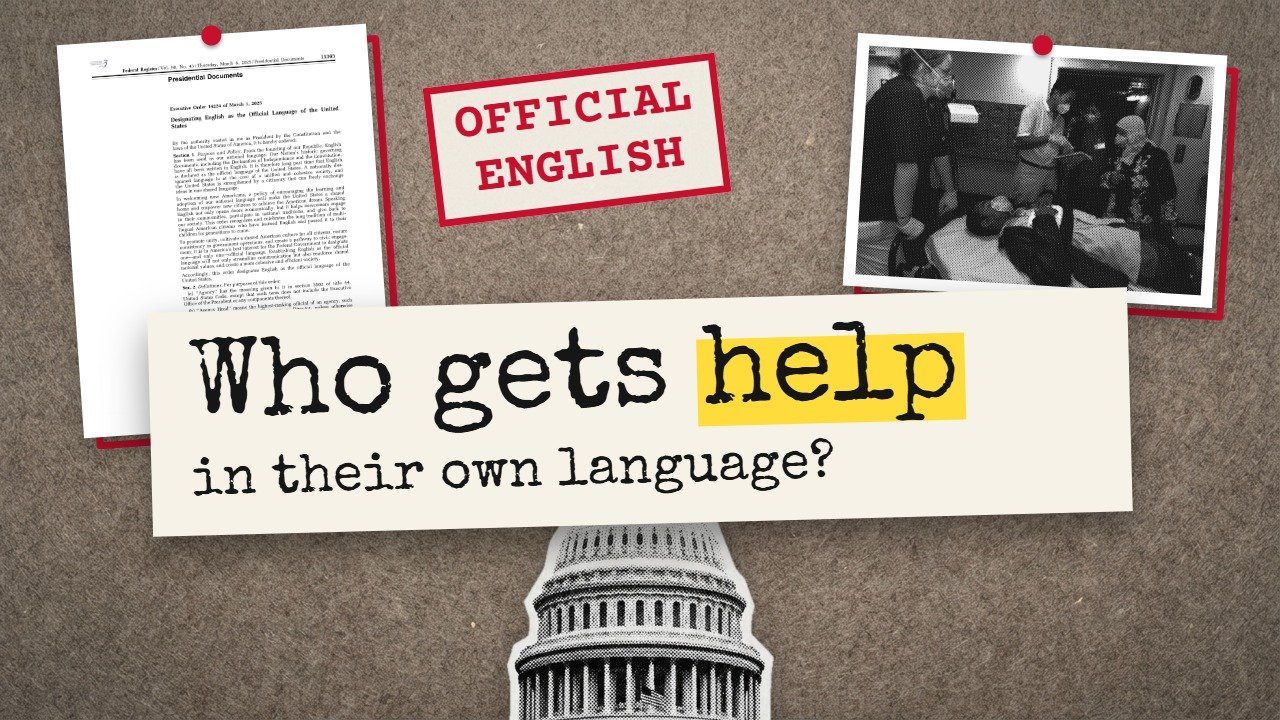
Make a 1280 by 720 cover image in the same visual system: the board, one document print and one photo print, a red stamp, the title question in the headline font on a paper slip with one word highlighted, and a building in front. No politician’s face and no generated person.
Finding footage and images
A search for a topic word returns thousands of items, most of them copyrighted or unrelated. Search by the kind of material and the decade, filter for what you are allowed to use, and open the item page before you download anything.
| Archive | Search this way | License to check |
|---|---|---|
| Internet Archive, Prelinger Archives | Search inside the collection, not the whole site (example: immigration in Prelinger); educational and industrial films from the 1920s to the 1970s | The Usage line on each item page; most Prelinger items are public domain |
| Internet Archive, moving images | Search a place or event with a year (“Ellis Island 1903”); on the item page, Show All lists the original file, which is larger than the default copy | Usage line; skip items with none |
| Internet Archive TV News Archive | Search a quotation to find when it was said on air | The footage belongs to the network; use it to cite and date a statement, then quote the words on screen |
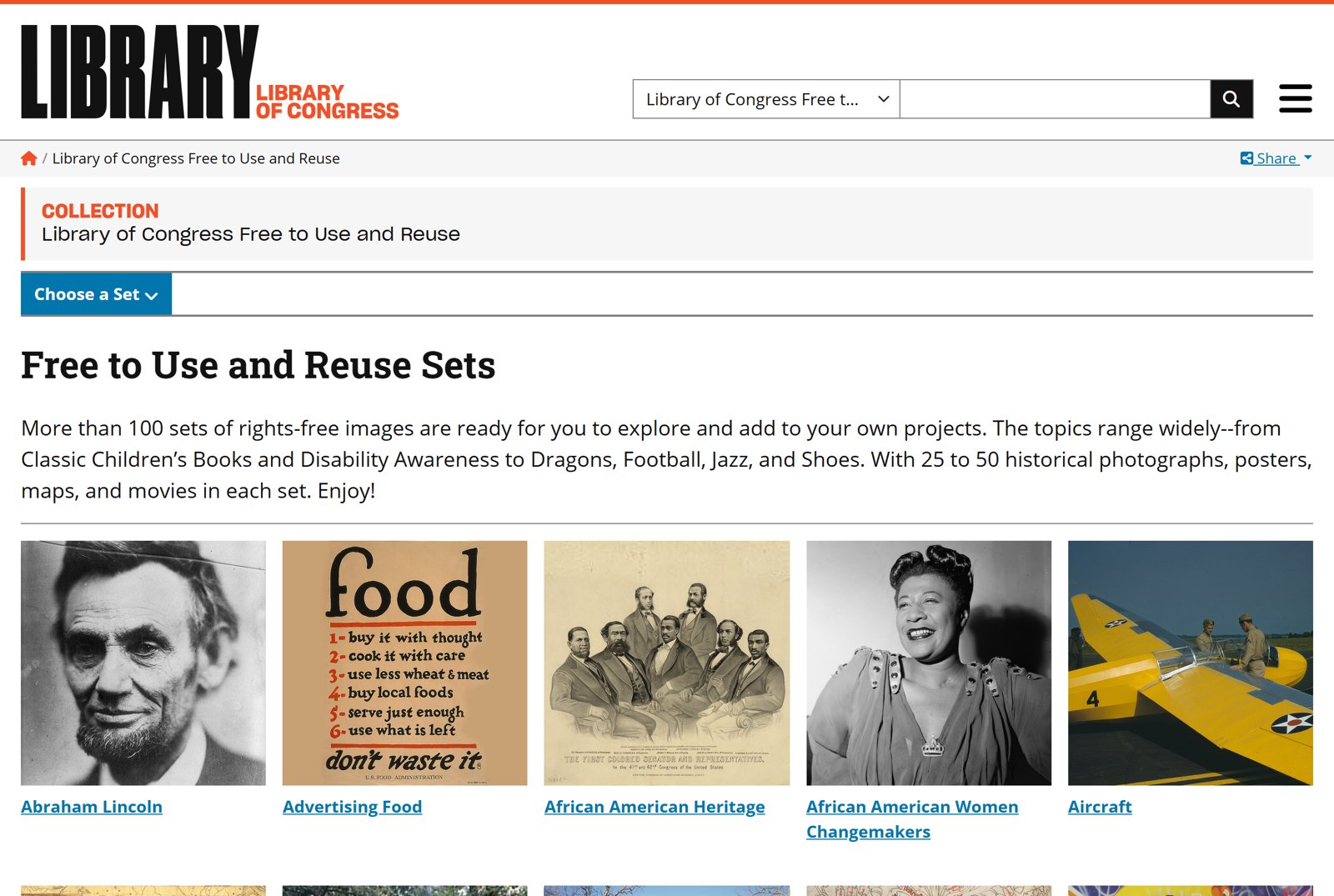
| Library of Congress, Free to Use and Reuse | Start from a set (immigration, maps, posters); each set is already cleared | The rights statement on each item |
| Library of Congress films and videos | Search, then filter by date | The rights statement on each item |
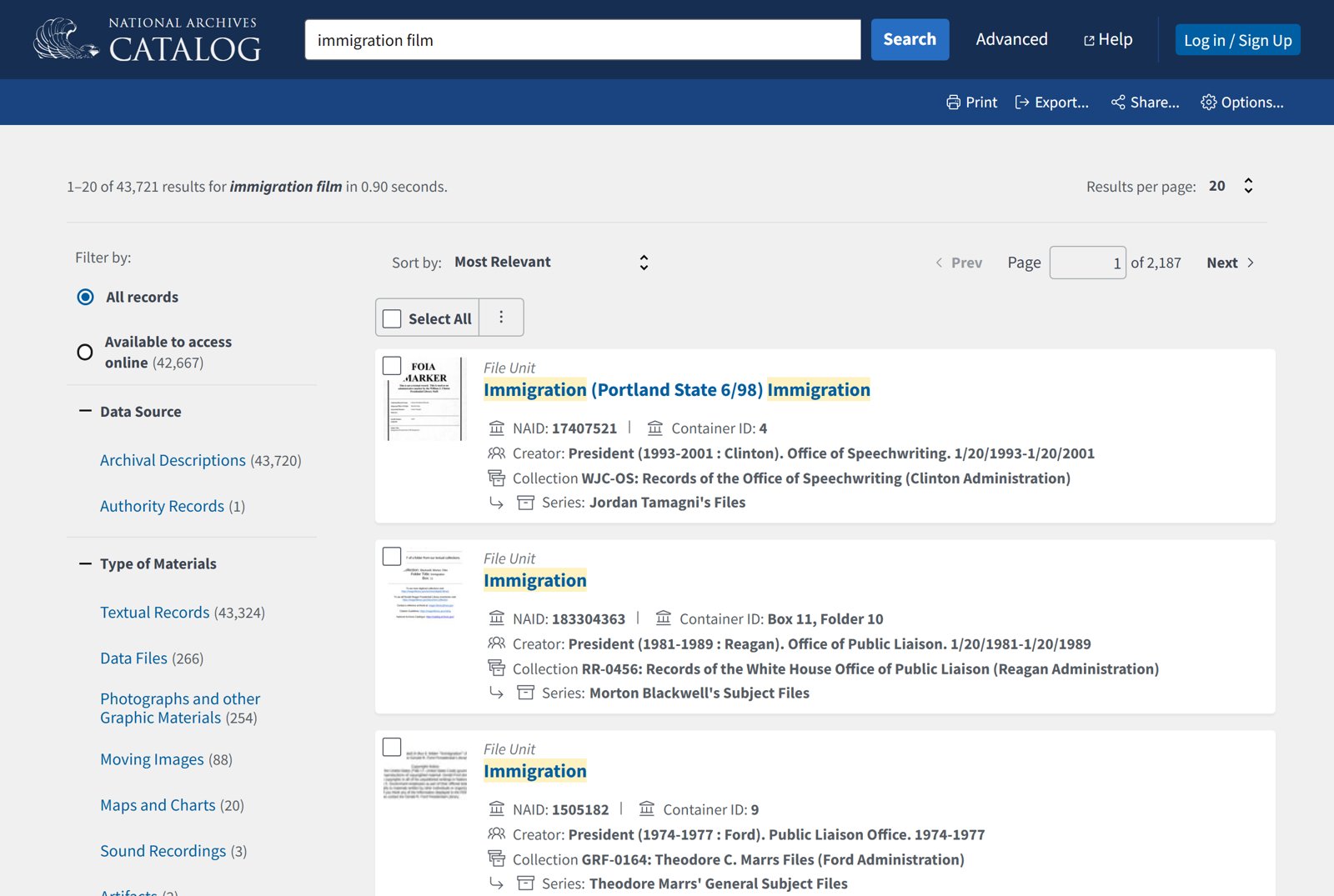
| National Archives catalog | Tick “Available to access online” and choose “Moving Images” or “Photographs” under Type of Materials | Federal government works are public domain; check items from private donors |
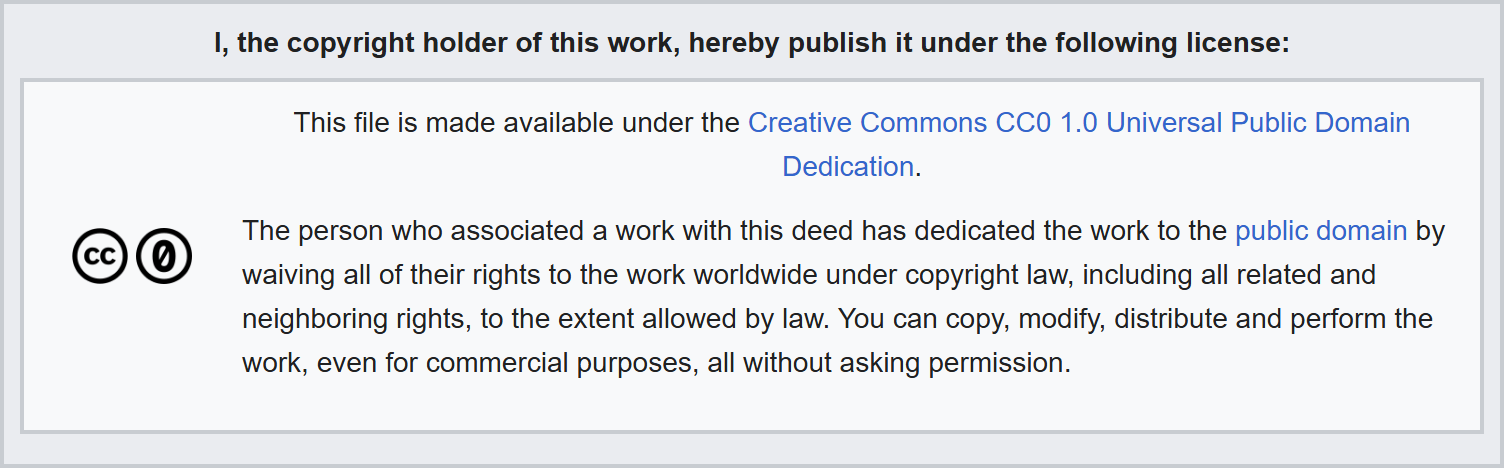
| Wikimedia Commons | Search in English and in the language of the community; use the category links at the bottom of a good file to find related ones | The license box on each file page, with the author’s name for the credit |
| Openverse | Searches openly licensed images across many sites | Open the source page and confirm the license there |
| Smithsonian Open Access | Images marked CC0 | CC0 needs no credit; give one anyway |
| Densho Digital Repository | Japanese American incarceration photos, documents and oral histories | Each item’s rights field |
| Calisphere | Collections from California libraries and archives | Each item’s rights statement |
| govinfo and Federal Register | Statutes, executive orders and rules as PDFs, for highlighted lines | Federal documents, free to show |
| Freesound, YouTube Audio Library, incompetech | Sound effects and music; filter Freesound by license | The license on each sound; CC BY needs a credit line |
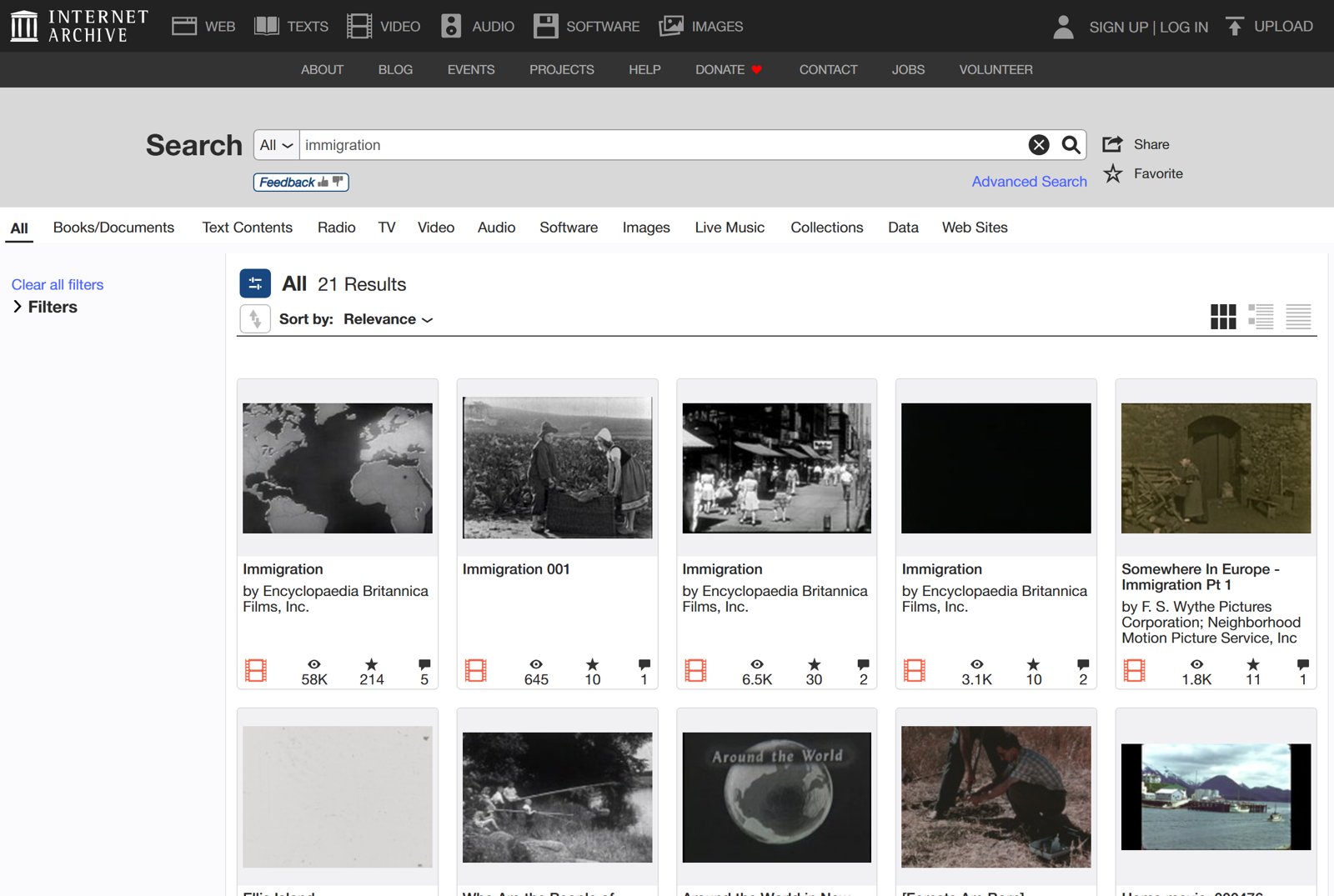
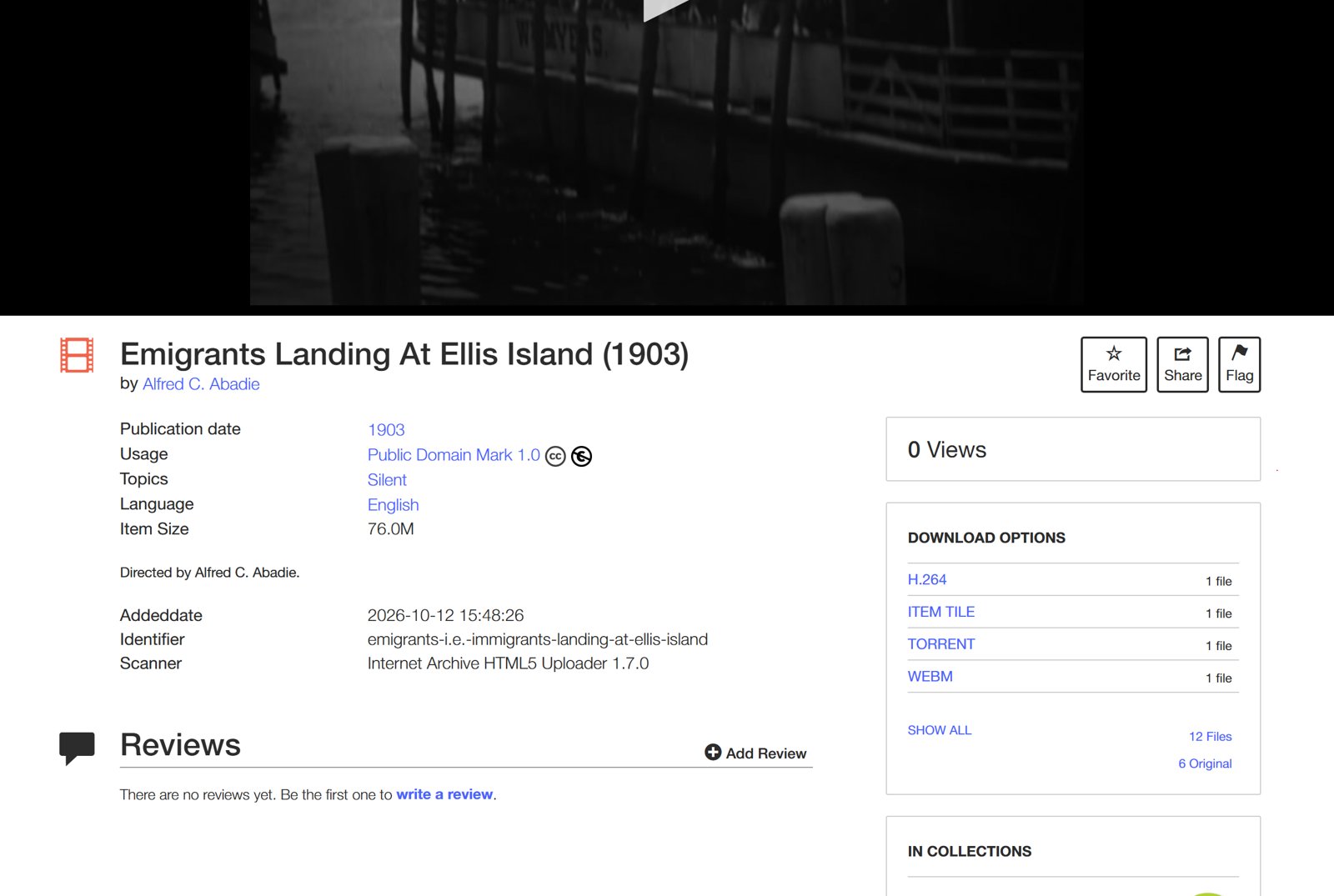

For the class video, the agents searched with these rules and came back with 9 clips, 36 document pages, 21 articles, 29 photos and 11 statements. The 1903 Ellis Island film is Edison’s, from the Internet Archive; the 1946 classroom and newsstand shots are from Immigration (1946) in the Prelinger Archives; the protest photos are from Wikimedia Commons with each photographer named. Nothing usable turned up for Lau v. Nichols or the official English campaigns, so those scenes use documents and photos. Ask the agent to list what it could not find, as in step 5.
Checks before publication
- Every number, date and quotation goes back to the page it came from.
- Captions are corrected by hand, names and non-English words especially.
- Captions are uploaded as a file, not burned into the picture, so viewers can turn them off, resize them and have YouTube translate them.
- The descriptive transcript is linked in the description, and translated caption tracks are labeled as AI translations until someone who reads the language has checked them.
- Every music and sound license is recorded, and its credit line is in the description.
- Any AI-made image, texture or voice is labeled in the piece. The class example labels its background texture and building cut-outs (Gemini) and its narration (ElevenLabs) in the end credits.
- Anyone real in the piece has a right of reply before it screens.