Tools
Everything used in the labs, all free, tested in 2026. Where a “free” tool has a restriction, the restriction is stated. You need a laptop, a Google account, and nothing else; no purchases, no installs beyond what a lab explicitly requires.
AI assistants
Use whichever you prefer; labs sometimes assign one deliberately so the class can compare.
- ChatGPT, Claude, Google Gemini
- University of Michigan tools, free with your uniqname. The university runs its own generative AI services. U-M GPT provides the U-M community with no-cost access to several chat models and image generation, and U-M Maizey builds a custom assistant over your own documents. Google Gemini and NotebookLM are also covered by U-M’s enterprise agreement when you sign in with your U-M account, which clears them for certain kinds of sensitive data that a personal account is not. For anything that touches client, partner, or otherwise sensitive information, use a U-M-covered service, sign in with your U-M account, and check the ITS guidance for which data each tool is approved to handle. Do not paste a partner’s private data into a personal chatbot account.
- Disclosure rule: every use in graded work is disclosed on the class form, and every factual claim is verified before it enters your work. This applies to the U-M tools exactly as it does to the public ones.
- Week 5’s prompt-writing exercise; Anthropic’s prompt engineering overview and OpenAI’s prompt engineering guide.
AI mechanics (Week 4)
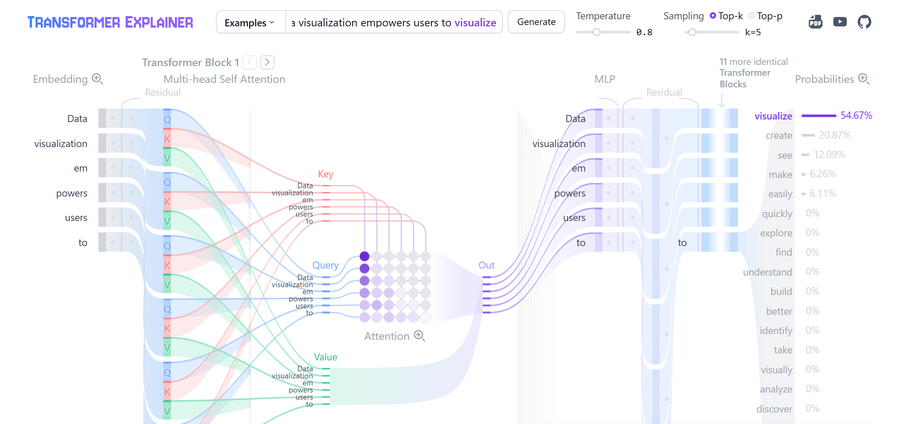
- Transformer Explainer runs a real GPT-2 in your browser. Watch the temperature slider change what “the same model” says.
- 3Blue1Brown, LLMs explained briefly (video, ~8 min).
AI policy and adoption (Weeks 5–6)
- Mental Health AI Policy Project, 50-state tracker: every enacted law and active bill on AI in mental health, filterable by state, with bill text, key provisions, and enforcement authority. As of July 2026 it tracks 44 bills, 22 of them enacted laws. Check your own state before making an adopt/defer/refuse call on any AI tool that touches mental health care.
Story production (Weeks 10–11)
There are two lanes. Cloud editors upload your footage to someone else’s servers, so if your piece contains an identifiable vulnerable person, edit in the offline lane. For everything else (your own narration, staff on camera with consent, consented public footage, stock), the easy lane is fine and much faster.
The easy lane (cloud, text-based editing):
- Clipchamp, free with a Microsoft account (your U-M account works), no watermark up to 1080p, auto-captions included free. Browser-based, nothing to install; the fastest route from footage to a captioned cut.
- Vrew edits video like a text document: it transcribes your footage and you cut by deleting sentences. Strong for interview-driven pieces. Its free tier has monthly limits on speech-to-text and AI features that change often, so check the current terms before committing a project to it.
- Whichever you use, the accessibility rule applies: auto-captions are a draft, and you hand-correct them before submission.
The offline lane (required for sensitive footage):
- Video: DaVinci Resolve, genuinely free, no watermark. The restriction: the free version does not auto-generate captions; that feature is Studio-only. Caption externally and import the .srt.
- Captions: Subtitle Edit with Whisper runs offline on the lab machines, which also means a vulnerable subject’s story never touches a third-party cloud. YouTube Studio’s auto-captions are the no-install fallback; export, correct by hand, done.
- Audio: Audacity, free and sufficient.
Either lane:
- Design: Canva free tier for titles and thumbnails; an organization you work with can apply for Canva for Nonprofits if it is a registered nonprofit.
- A note on CapCut: its free tier now caps auto-captions and puts .srt export behind the paid plan, so the tools above are the safer route.
Accessibility (Week 11)
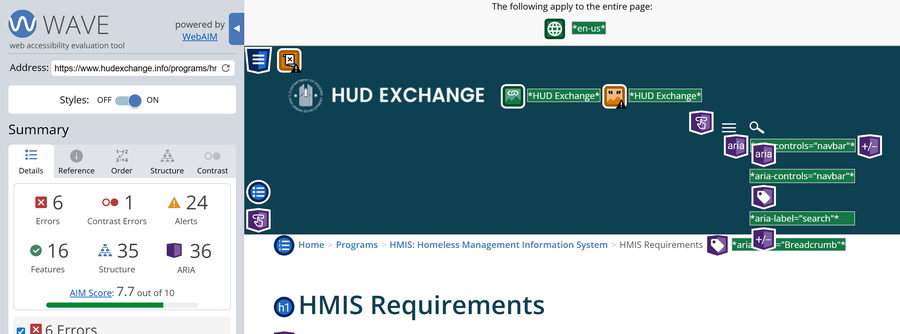
- W3C WAI: Captions/Subtitles, the standard you will actually apply.
- Section 508 synchronized media checklist.
- NVDA, the free screen reader. Try your own story with it.
- WebAIM contrast checker for anything with text on color.
Partner work (Weeks 9–13)
- Technology readiness self-check, our ten-minute browser tool for the Week 9 capacity assessment, quoting the NCVO Digital Maturity Matrix, the Data Orchard Data Maturity Framework, and CIS Implementation Group 1.
- NTEN Tech Accelerate assessment plus their Equity Guide for Nonprofit Technology (2025), the instrument behind the Week 9 capacity assessment.
- TechSoup Digital Assessment Tool as the alternative instrument.
- Community Tool Box, ch. 3, assessing community needs and resources.
- Our Data Bodies, Digital Defense Playbook for the Week 7 lab and for partner conversations about data.
Humanitarian mapping (optional)
- Missing Maps and the HOT Tasking Manager, if you want to try humanitarian mapping on your own time; discussed in Week 12’s commons cases.
Tool churn
Free tiers shrink, links rot, and features move behind paywalls. This page was accurate in July 2026 and is re-verified each offering. Spotting a change before the instructor does is worth a Design Wall post.